> For the complete documentation index, see [llms.txt](https://taskoncommunitys-organization.gitbook.io/guide-book/llms.txt). Markdown versions of documentation pages are available by appending `.md` to page URLs; this page is available as [Markdown](https://taskoncommunitys-organization.gitbook.io/guide-book/getting-started/how-to-create-community-tasks/task-list/how-to-change-task-status.md).
# How to Change Task Status
TaskOn Community supports both individual and bulk task operations.
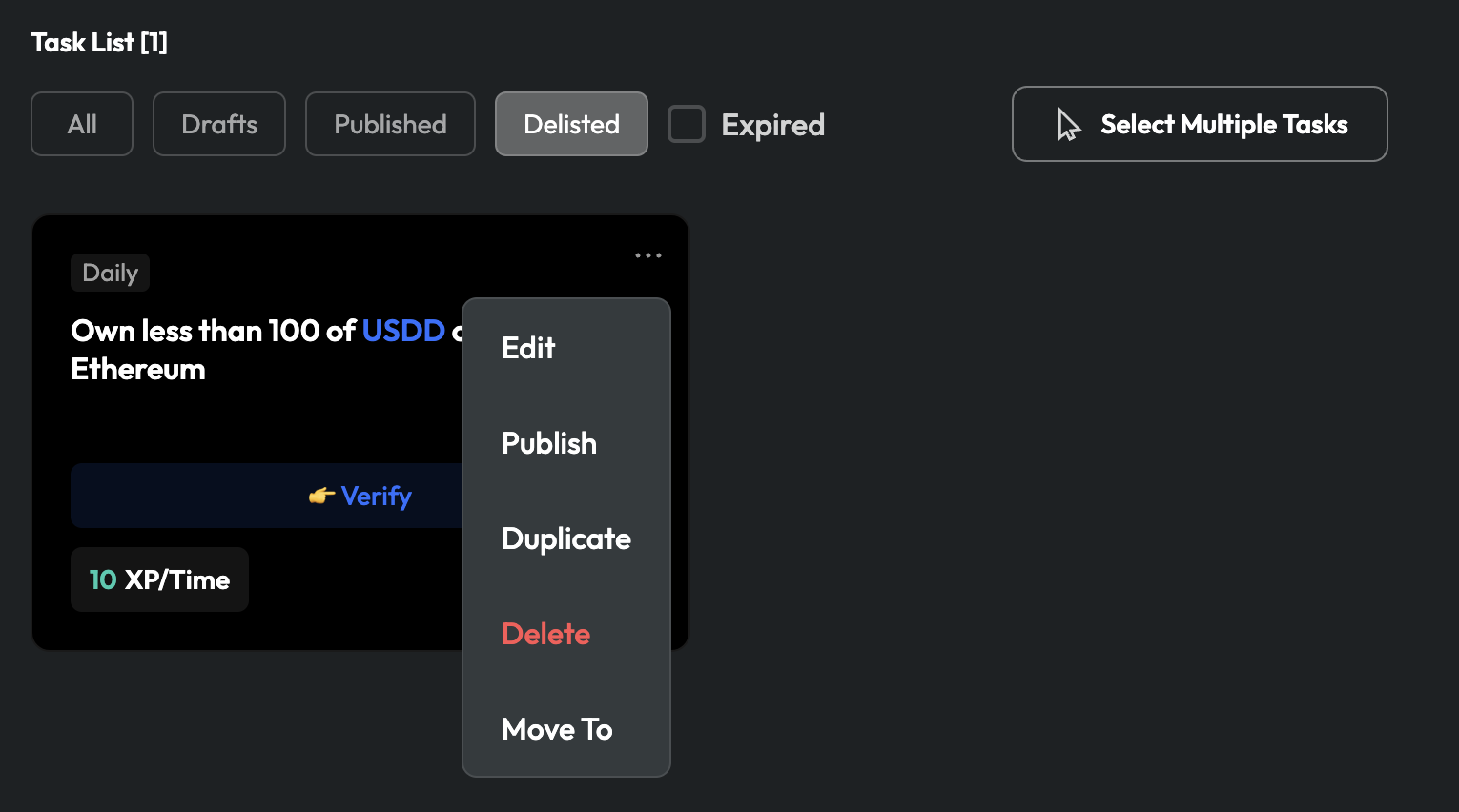
### Editing Task Individually
#### Edit
Editing the details of a task means that you can modify various aspects such as task `description`, `URL`, `conditions`, `rewards`, `recurrence`, `time frame`, and `more`.
#### Delisted
You can voluntarily take the task offline, and users will not see it.
#### Duplicate
If you want to duplicate a completed task template, click "`Duplicate`" to create a similar task. You can make modifications to the duplicate afterwards.
#### Delete
Remove this task from your community.
***Note that if the task has already been completed by community members, you won't be able to delete it.***
#### Copy Link
`Copy link` serves two purposes:
1. If you want to highlight the `importance`, `independence`, or `priority` of a specific task within the community, you can use this feature to obtain the `URL` of the task and share it separately.
2. To test the entire workflow of a task and ensure its smoothness, you can use the "Copy Link" feature to share the task with others. Invite them to test the task and provide feedback.
#### Move to
You can move a task from its current sector to another sector.
**The permissions for tasks vary, depending on their status.**
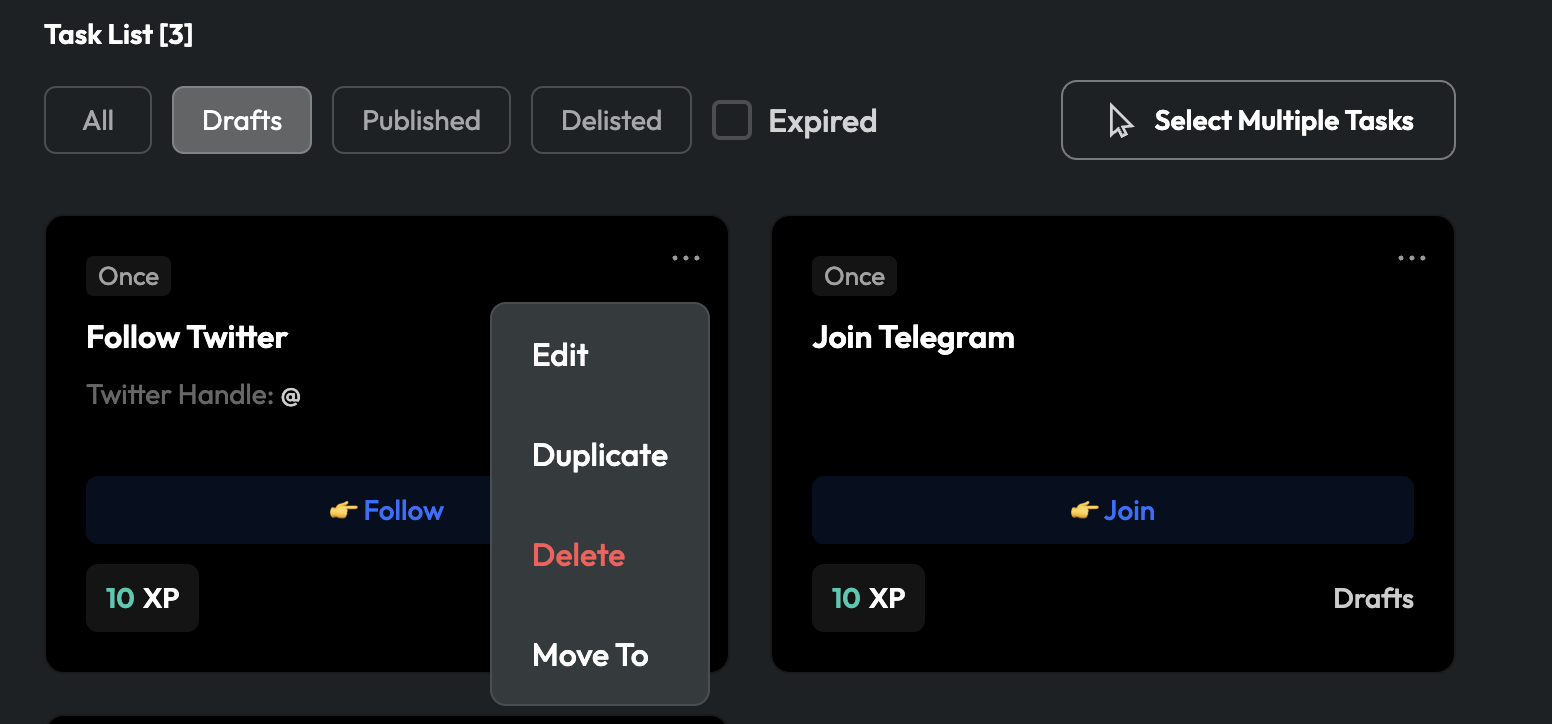
In `Draft`: Edit, Duplicate, Delete, Move To
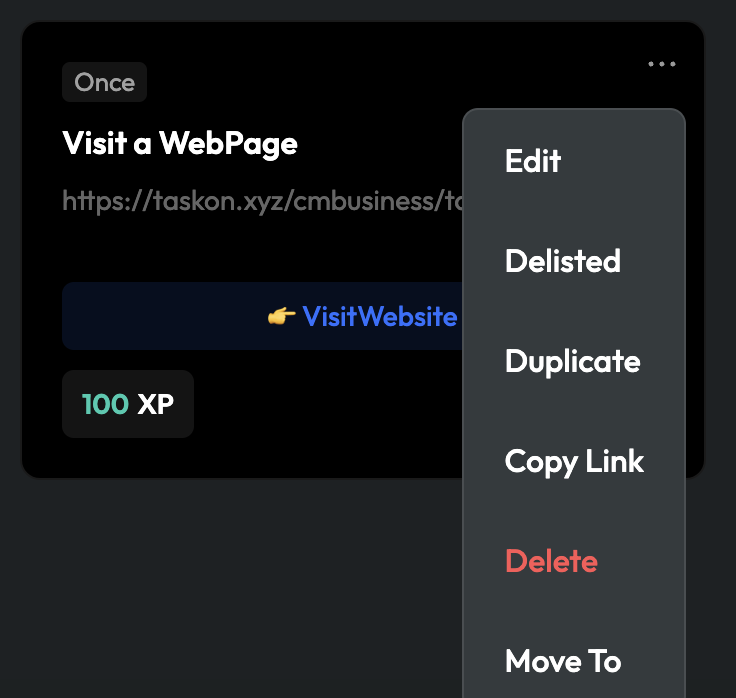
In `Published` (With members `participating`) : Edit, Delisted, Duplicate, Copy Link, Delete, Move To
In Published (**NO** members participating yet): Edit, Delisted, Duplicate, Copy Link, Delete, Move To
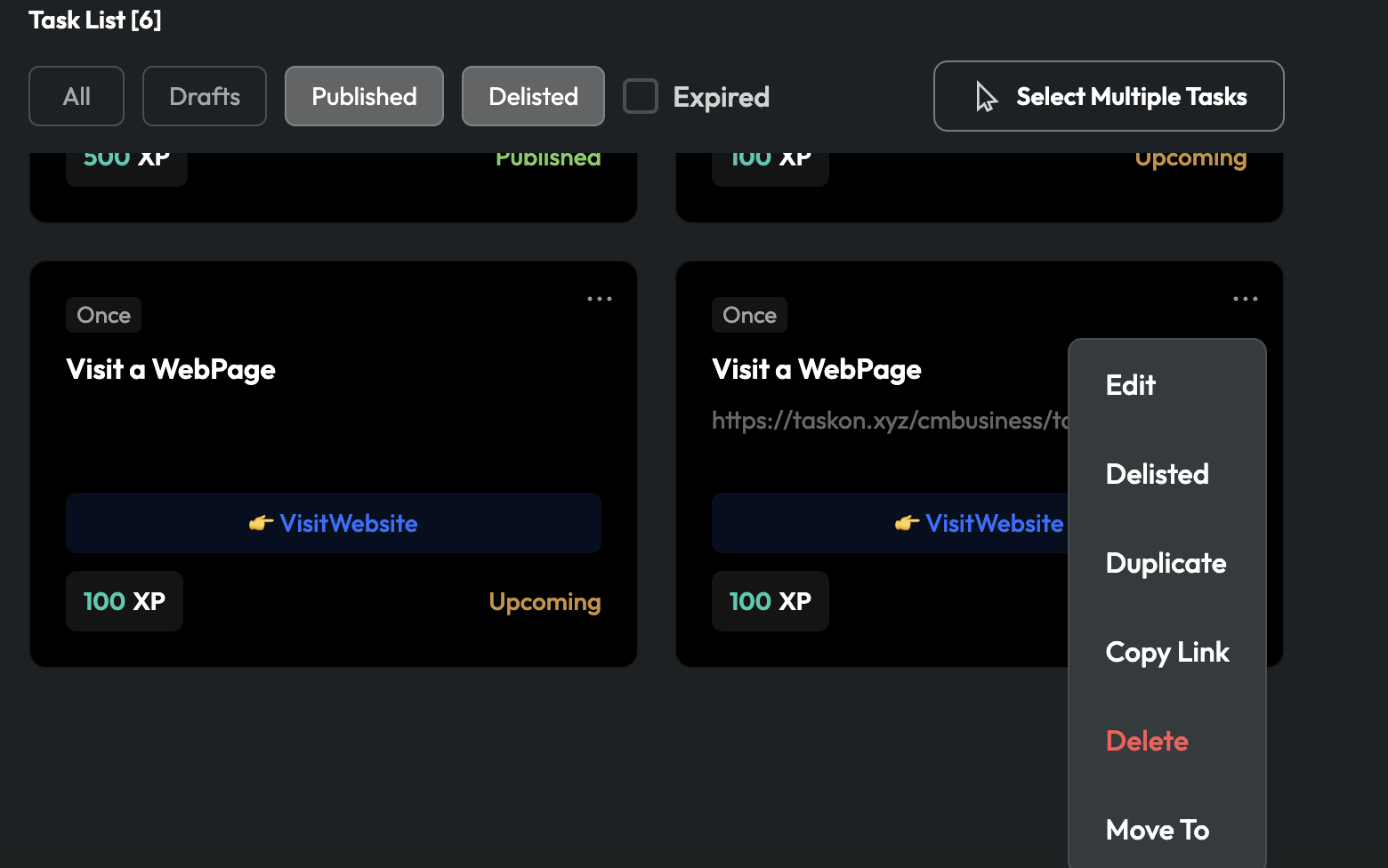
In `Upcoming`: Edit, Delisted, Duplicate, Copy Link, Delete, Move To
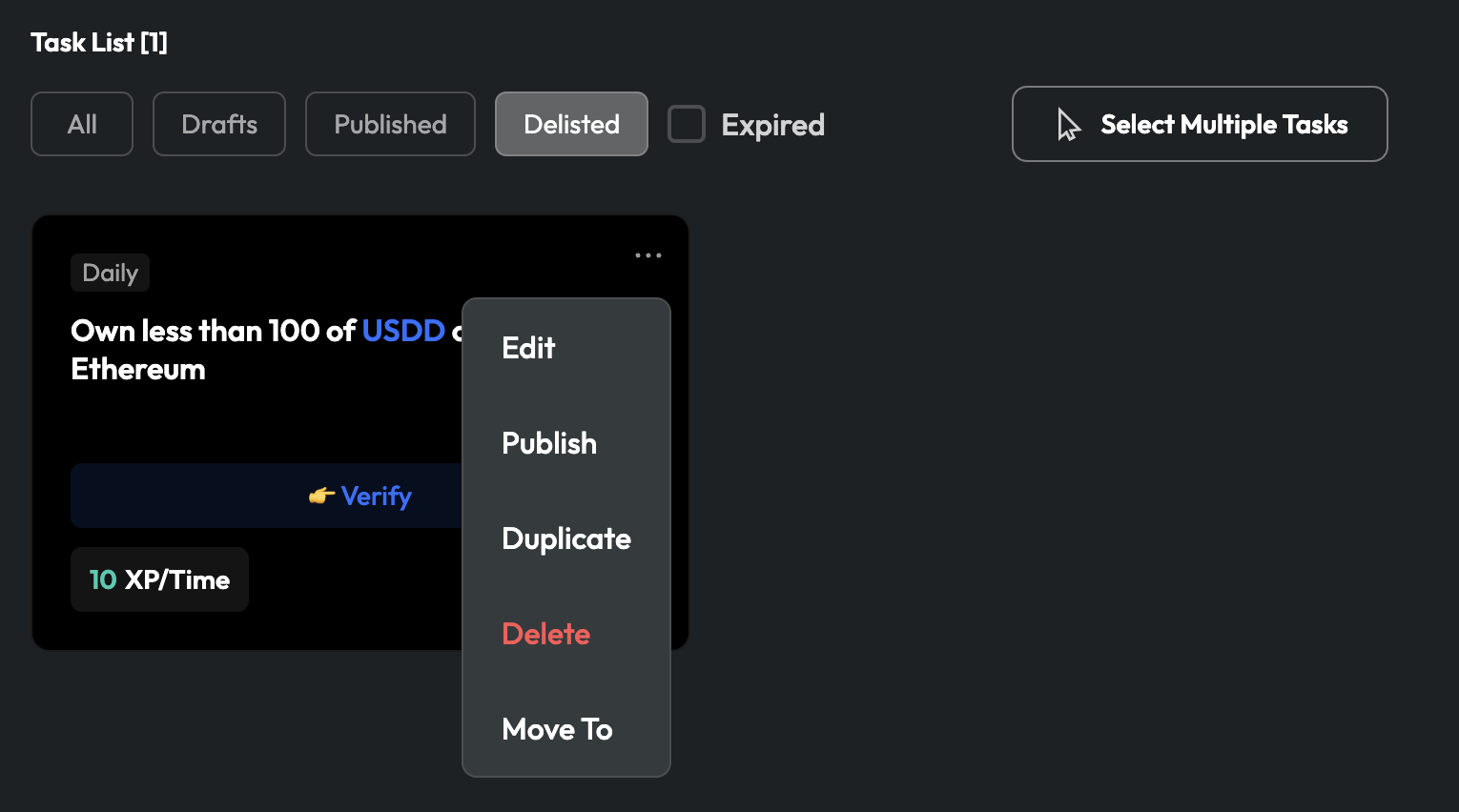
In Delisted: Edit, Publish, Duplicate, Delete, Move To
In `Ended`: Duplicate, Delete, Move To
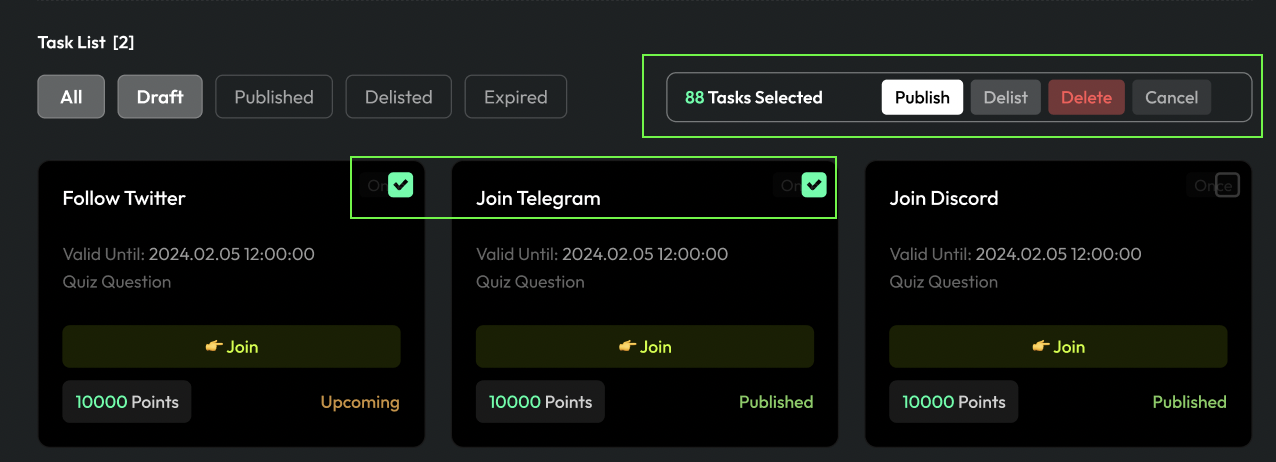
### Editing Tasks in Bulk
You can perform batch processing of task statuses. First, select the tasks as well as the checkboxes above, and choose options such as `Publish`/`Delist`/`Delete`. If you wish to cancel the current operation, you can click “`Cancel`”.